Why Convert PDF Data to Excel?
Tables in PDF reports, statements, invoices, and research documents are easy to view but difficult to calculate with. Copying rows manually can introduce missing values, misplaced columns, and formatting errors, especially when the document contains many pages.
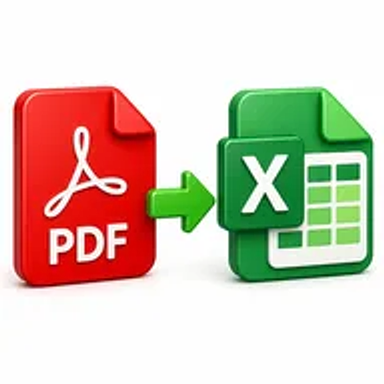
A PDF to Excel converter moves structured information into a spreadsheet where you can sort records, apply formulas, create charts, filter results, and update values. This can reduce repetitive data entry and make analysis faster.
How Hemiley Simplifies PDF to Excel Conversion
Upload the PDF and let Hemiley identify tables and structured page content. The tool creates an Excel-compatible file that you can download and review in spreadsheet software.
Conversion quality depends on the source document. Clear, digitally generated tables usually convert more accurately than photographed pages, irregular layouts, merged cells, or low-resolution scans. Scanned PDFs may require OCR before the data can be recognized.
Key Benefits
Editable spreadsheet data
Work with extracted values in rows, columns, and cells.
Less manual data entry
Reduce the need to retype long financial or operational tables.
Quick browser-based processing
Convert PDF tables without installing desktop conversion software.
No registration required
Use the tool without opening an account.
Compatible output
Download an XLSX file for use in common spreadsheet applications.
Useful across devices
Start the conversion from supported desktop or mobile browsers.
Who Uses Our PDF to Excel Converter?
Finance and accounting teams
Extract statements, expense reports, invoices, and transaction tables.
Sales and operations teams
Convert sales reports, inventory lists, and performance data.
Students and researchers
Reuse statistical tables and structured research data.
Administrators and analysts
Turn archived PDF records into spreadsheets for filtering and review.
How to Convert PDF to Excel in 4 Steps
- 1
Upload the PDF
Choose the document containing the tables or data you need.
- 2
Start the conversion
Process the file using the available PDF to Excel options.
- 3
Review the spreadsheet
Check headings, rows, columns, totals, dates, and decimal values.
- 4
Download the XLSX file
Save the converted spreadsheet to your device.
Common PDF to Excel Use Cases
- Convert bank or card statements into sortable records.
- Extract expense reports and invoice tables for reconciliation.
- Reuse inventory, pricing, or sales data from a PDF report.
- Transfer research tables into a spreadsheet for analysis.
- Create charts and formulas from data previously locked in a PDF.
Why Choose Hemiley?
Hemiley provides a direct route from static PDF tables to editable spreadsheet data. The browser-based workflow helps users begin analysis without manually rebuilding every row and column.
The tool is suitable for occasional conversions as well as regular document-processing tasks in finance, education, research, and administration.
Related Free PDF Tools
Frequently Asked Questions
It works best with clear, structured tables. Complex layouts, scans, handwritten content, and irregular columns may need manual correction.
No. A PDF normally stores displayed results, not the original spreadsheet formulas or workbook logic.
Charts may be transferred as images or visual objects rather than rebuilt as editable chart data.
Yes, but OCR may be required before the table text and numbers can be recognized.
Yes. Always compare critical values, totals, dates, and account information with the source PDF before using the spreadsheet.