Remove PDF pages online tool for deleting unwanted pages from a PDF

Remove PDF Pages Online for Free – Delete Unwanted Pages

Delete blank, duplicate, outdated, or unnecessary pages from a PDF online. Select the pages you want to remove and download a cleaner document in a few simple steps.

Files never leave your device

Upload

Drag and Drop or Browse to Upload

Supported formats: pdf

Options

Why Removing Unwanted PDF Pages Matters

A PDF can become difficult to use when it contains blank scans, duplicate pages, outdated sections, advertisements, or information that should not be shared. Rebuilding the entire file is inefficient, especially when only a few pages need to be removed.

Cleaning the document creates a shorter, more professional file and helps recipients focus on the content that matters. It can also reduce unnecessary file size and prevent accidental sharing of irrelevant pages.

How Hemiley Helps You Delete PDF Pages

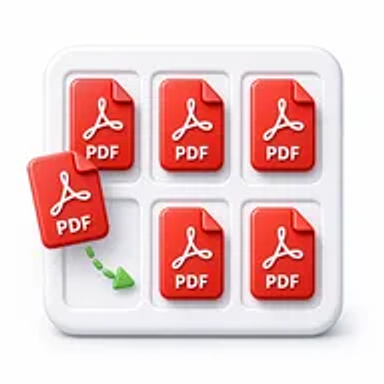
Hemiley displays the uploaded document so you can identify and remove selected pages. After confirming your choices, the tool creates a new PDF containing only the pages you want to keep.

The process runs online and does not require a desktop editor, account, or browser extension.

Key Benefits

  • Visual page control

    Choose specific pages instead of editing the document manually.

  • Cleaner documents

    Remove blank pages, duplicates, ads, and outdated content.

  • Quick online processing

    Complete the task from a browser in a few steps.

  • No sign-up required

    Use the tool without creating a profile.

  • Compatible with major devices

    Edit PDFs from computers, tablets, and smartphones.

  • Original content retained

    Keep the remaining pages in their existing layout and quality.

Who Uses the Remove Pages Tool?

  • Students and researchers

    Remove draft pages, blank scans, or unused references.

  • Administrative teams

    Clean reports, application files, and internal records.

  • Legal professionals

    Prepare relevant document sets for review or submission.

  • Freelancers and businesses

    Remove outdated pricing, unwanted appendices, or duplicate pages.

How to Remove Pages from a PDF in 4 Steps

  1. 1

    Upload your PDF

    Select the file that contains pages you no longer need.

  2. 2

    Mark unwanted pages

    Choose each page you want to delete.

  3. 3

    Click “Remove Pages”

    Create a cleaned version of the PDF.

  4. 4

    Download the new file

    Save the edited document to your device.
Common Uses for Deleting PDF Pages

  • Remove blank pages created during scanning.
  • Delete duplicate pages from reports or submissions.
  • Remove outdated terms, price sheets, or appendices.
  • Clean presentation exports before sharing.
  • Prepare a shorter client-facing or public version of a document.

Why Choose Hemiley?

Hemiley provides a focused page-removal workflow without the complexity of a full PDF editor. The interface is designed for quick decisions and simple downloads.

Because it works online, the tool is practical for one-time corrections as well as routine document cleanup.

Frequently Asked Questions

Yes. Select all unwanted pages before starting the removal process.

The tool creates a new edited file. Keep your original document as a backup.

Yes. Any selectable page can be removed.

Yes. Scanned pages can be removed like other PDF pages.

No. The page-removal process runs online in your browser.